> ## Documentation Index
> Fetch the complete documentation index at: https://innateinc-theo-docs-skills-authoring-api.mintlify.site/llms.txt
> Use this file to discover all available pages before exploring further.
# Control & Connectivity
This page covers controlling MARS with the app and leader arm, getting connected for the first time, and SSH access.
## Control via app, web, and leader arm
MARS is controllable from the [phone app](/robots/innate-controller-app) and the [web app](/robots/web-app) — both with live video, driving, and leader-arm teleoperation. Pick your surface below.
Direct APK download.
Join the iOS beta on TestFlight.
Drive from the on-screen joystick, and pick a [speed mode](#drive-speed-modes) to set how fast the stick can go. For the full feature list and current version numbers, see the [Controller App overview](/robots/innate-controller-app).
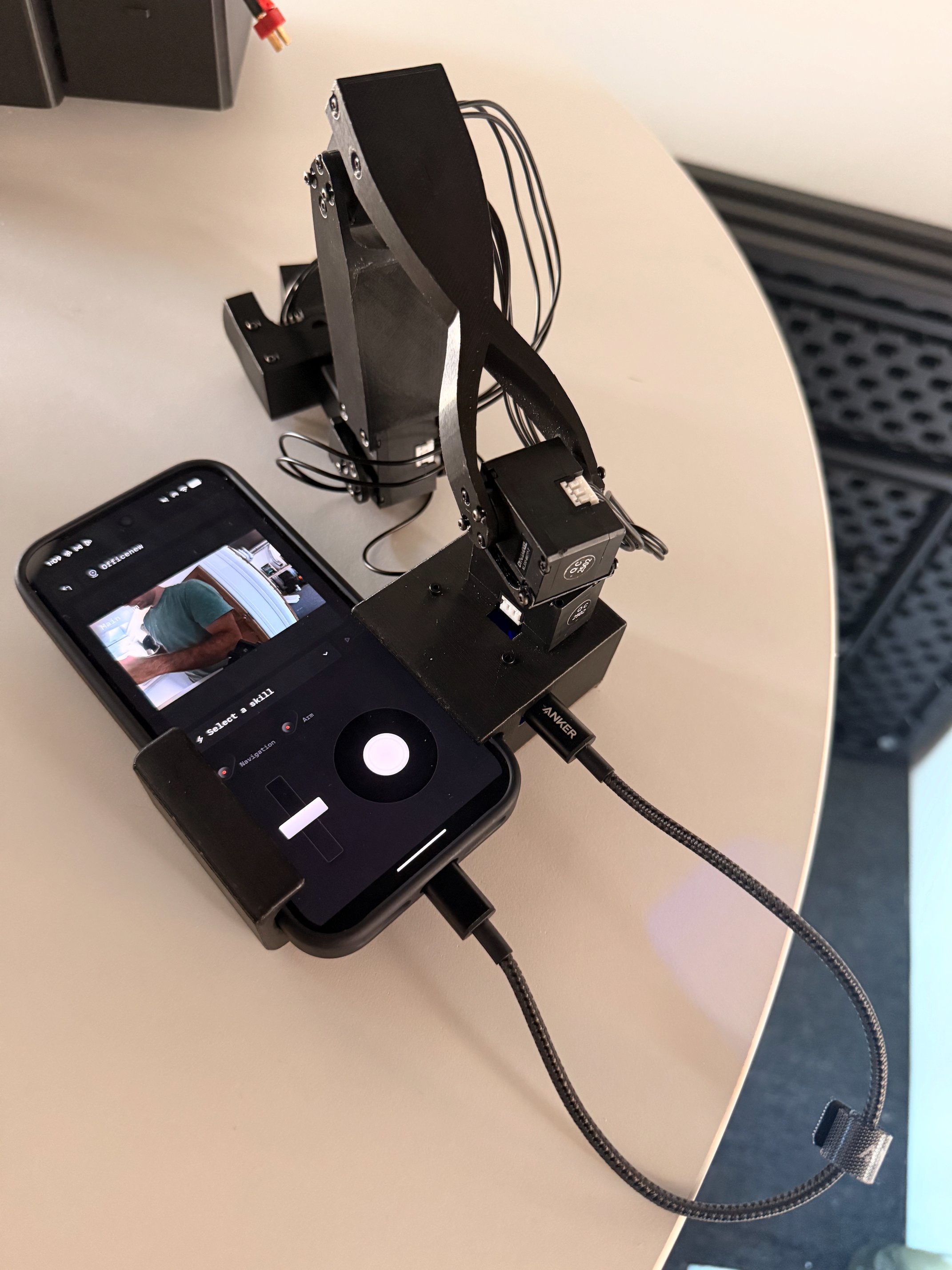
Every MARS robot comes with a leader arm attachable to your phone:
The app automatically recognizes your arm. Press the red **Arm** button to control MARS with the leader arm — MARS's arm should start mirroring your movements within a second. If it doesn't, check that the USB-C cable is seated on both ends and that the arm shows as connected in the app. For best results, stand behind the robot while teleoperating.
**Using an iPhone?** The leader arm connects over USB-C and doesn't work with iOS devices yet. Ping us on [Discord](https://discord.com/invite/KtkyT97kc7) and we'll get you a free Android phone for leader arm teleoperation.
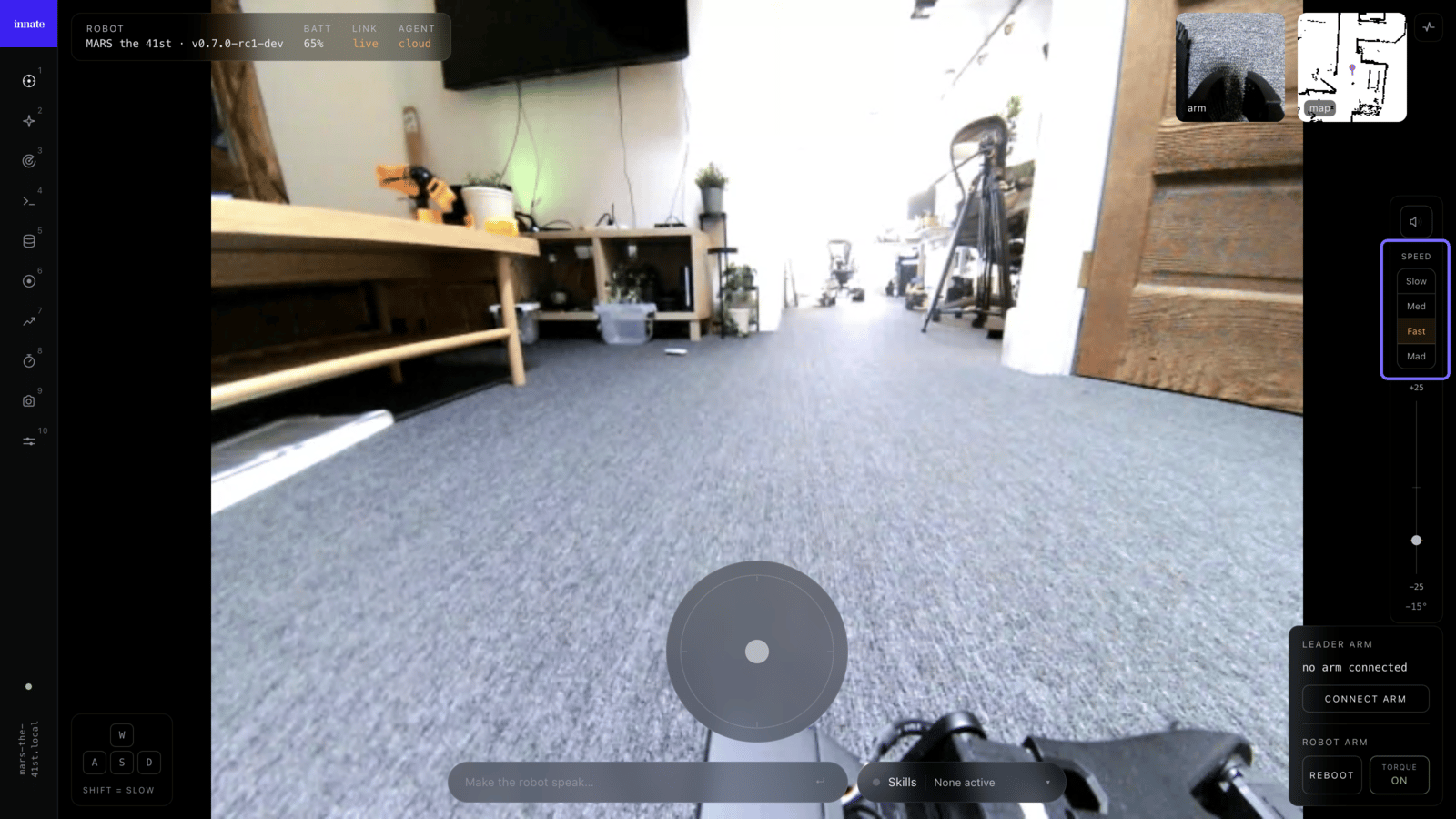
Open the web app at `https://` (its IP address — the `.local` hostname works too but is slower; see the [web app overview](/robots/web-app)) and use the **Teleop** page: live video, an on-screen joystick (or `WASD` / arrow keys), a [speed picker](#drive-speed-modes), head tilt, and robot speech (type a line and the robot says it). You can also **listen to the robot's microphone** — toggle the mic button on the video to hear what it hears (it starts muted). To teleoperate the arm, plug the leader arm into the computer running the browser, click **Connect arm**, then **Engage follow** — the robot's arm mirrors the leader. The panel also has **Reboot servos** and a **Torque** toggle.
Leader-arm teleop needs **Chrome or Edge** (it uses WebSerial), on the robot's HTTPS page. Driving, video, and speech work in any modern browser.
See the [web app overview](/robots/web-app) for details.
## Drive speed modes
Manual driving has four speed modes. They scale the robot's configured top speed rather than replacing it, so picking a mode changes the ceiling the joystick maps onto:
| Mode | Multiplier | Top speed (default config) |
| -------- | ---------- | -------------------------------- |
| **Slow** | 0.35× | 0.14 m/s |
| **Med** | 0.65× | 0.26 m/s |
| **Fast** | 1.0× | 0.4 m/s — the configured maximum |
| **Mad** | 2.0× | 0.8 m/s |
Acceleration scales with the mode too, so time-to-top-speed stays about the same — Slow is a lower ceiling, not a lazier ramp.
**Mad exceeds the configured limits.** Every other mode stays at or below `motion_control.max_speed` from [settings.yaml](/software/configuration); Mad doubles it, and the bringup safety clamp becomes the real ceiling. Use it in open space.
In the **web app**, the picker sits on the teleop right rail:
In the **phone app**, it's the same Slow/Med/Fast/Mad control on the manual control screen.
Speed mode is **robot state, not app state** — one setting shared by every client. Change it in the web app and the phone app follows a second later, and vice versa. Recording an episode or a map temporarily holds the robot at **Med** and restores your choice when you leave the screen.
Joystick driving is ramped rather than applied instantly: the app sends a target velocity and the robot accelerates toward it on its own 50 Hz loop. Releasing the stick — or losing Wi-Fi — decelerates under the same limits instead of cutting out.
### What the leader arm is (and isn't)
The leader arm is a **teleoperation controller**, not a second robot. You pose it joint-by-joint and MARS's own arm mirrors the motion, puppet-style — so a few things that look like missing pieces are by design:
* **It has no camera.** All perception comes from MARS's onboard cameras. The leader arm only reports its joint angles.
* **The tip is a spring-loaded trigger, not a gripper.** Squeezing the trigger drives MARS's grasper open/closed; it doesn't grasp anything itself.
* **Its segment proportions differ from the robot's arm, and that's fine.** Teleoperation maps joint angles, not absolute reach, and training only records the *robot's* joint state plus its camera feeds — never the leader arm's geometry. So the difference in segment lengths has no effect on the skills you train.
In other words, the leader arm is how you *demonstrate* a task; the picking, seeing, and grasping all happen on MARS. Here it is being used to record a manipulation dataset:
## Connecting to a Robot (Wi-Fi + BLE)
The app discovers the robot over Bluetooth, puts it on your Wi-Fi (a phone hotspot works too), then connects over the network. The full flow, with screenshots, lives here:
Bluetooth pairing, Wi-Fi setup, and what to do when the robot changes network.
Two details worth knowing:
* The robot publishes a `.local` hostname (for example `mars-robot.local`), so you can still reach it if its IP address changes.
* Once connected, you can check the robot's current IP in **Configuration** -> **WiFi**.
## Connecting via SSH
SSH gives you a terminal directly on the robot (username `jetson1`, password `goodbot`) over Wi-Fi, Ethernet, or USB-C. Full instructions for all three methods, including hostname rules and static-IP setup per OS:
The complete SSH reference — Wi-Fi, Ethernet, and USB-C recovery.
 The app automatically recognizes your arm. Press the red **Arm** button to control MARS with the leader arm — MARS's arm should start mirroring your movements within a second. If it doesn't, check that the USB-C cable is seated on both ends and that the arm shows as connected in the app. For best results, stand behind the robot while teleoperating.
 In the **phone app**, it's the same Slow/Med/Fast/Mad control on the manual control screen.
Speed mode is **robot state, not app state** — one setting shared by every client. Change it in the web app and the phone app follows a second later, and vice versa. Recording an episode or a map temporarily holds the robot at **Med** and restores your choice when you leave the screen.
In the **phone app**, it's the same Slow/Med/Fast/Mad control on the manual control screen.
Speed mode is **robot state, not app state** — one setting shared by every client. Change it in the web app and the phone app follows a second later, and vice versa. Recording an episode or a map temporarily holds the robot at **Med** and restores your choice when you leave the screen.