

Control via app, web, and leader arm
MARS is controllable from the phone app and the web app — both with live video, driving, and leader-arm teleoperation. Pick your surface below.- Phone app
- Web app
Android APK (1.3.0)
Direct APK download.
iOS TestFlight
Join the iOS beta on TestFlight.
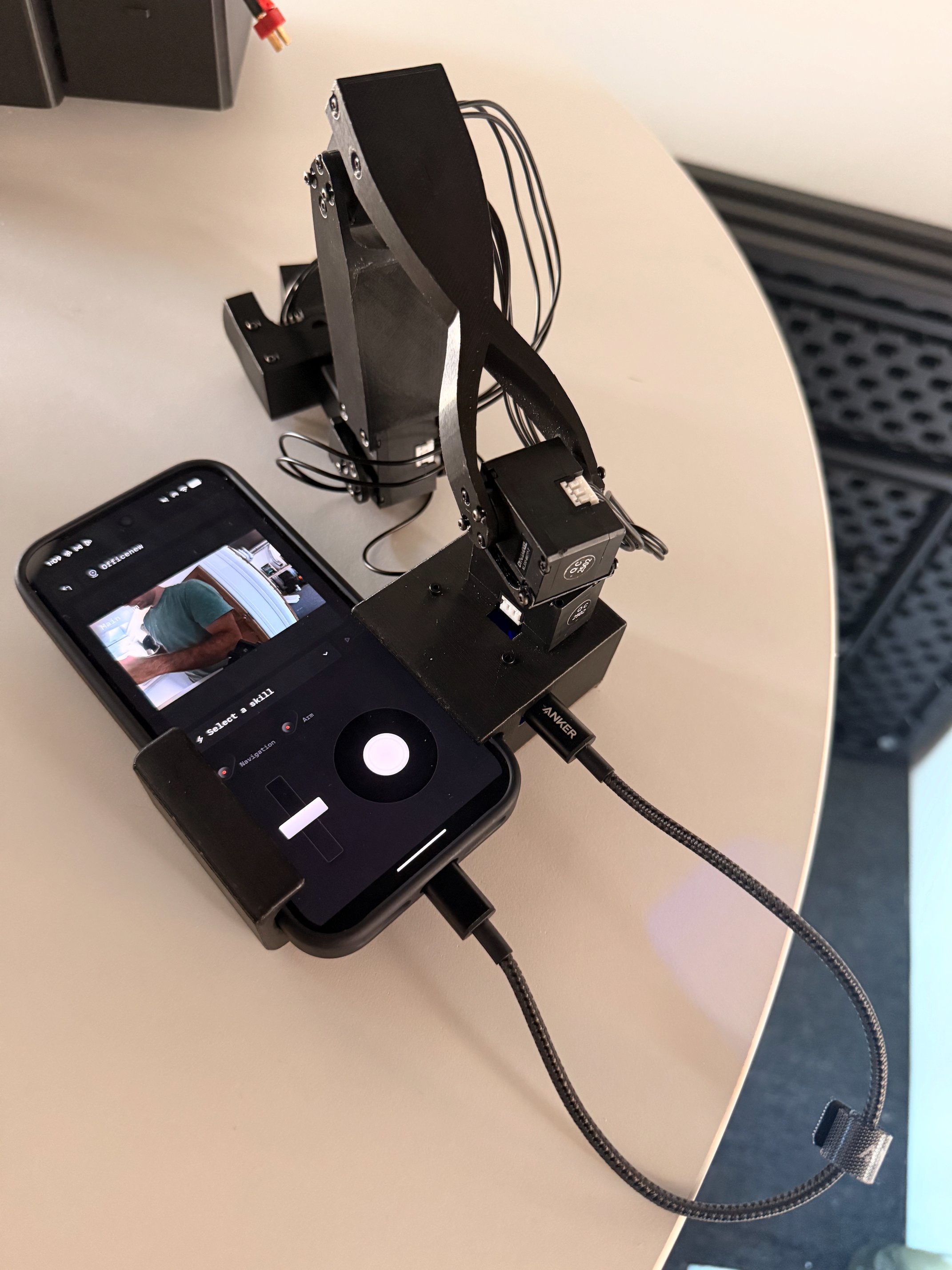
The arm is plugged in your phone with a double USB-C cable
Drive speed modes
Manual driving has four speed modes. They scale the robot’s configured top speed rather than replacing it, so picking a mode changes the ceiling the joystick maps onto:
Acceleration scales with the mode too, so time-to-top-speed stays about the same — Slow is a lower ceiling, not a lazier ramp.
In the web app, the picker sits on the teleop right rail:
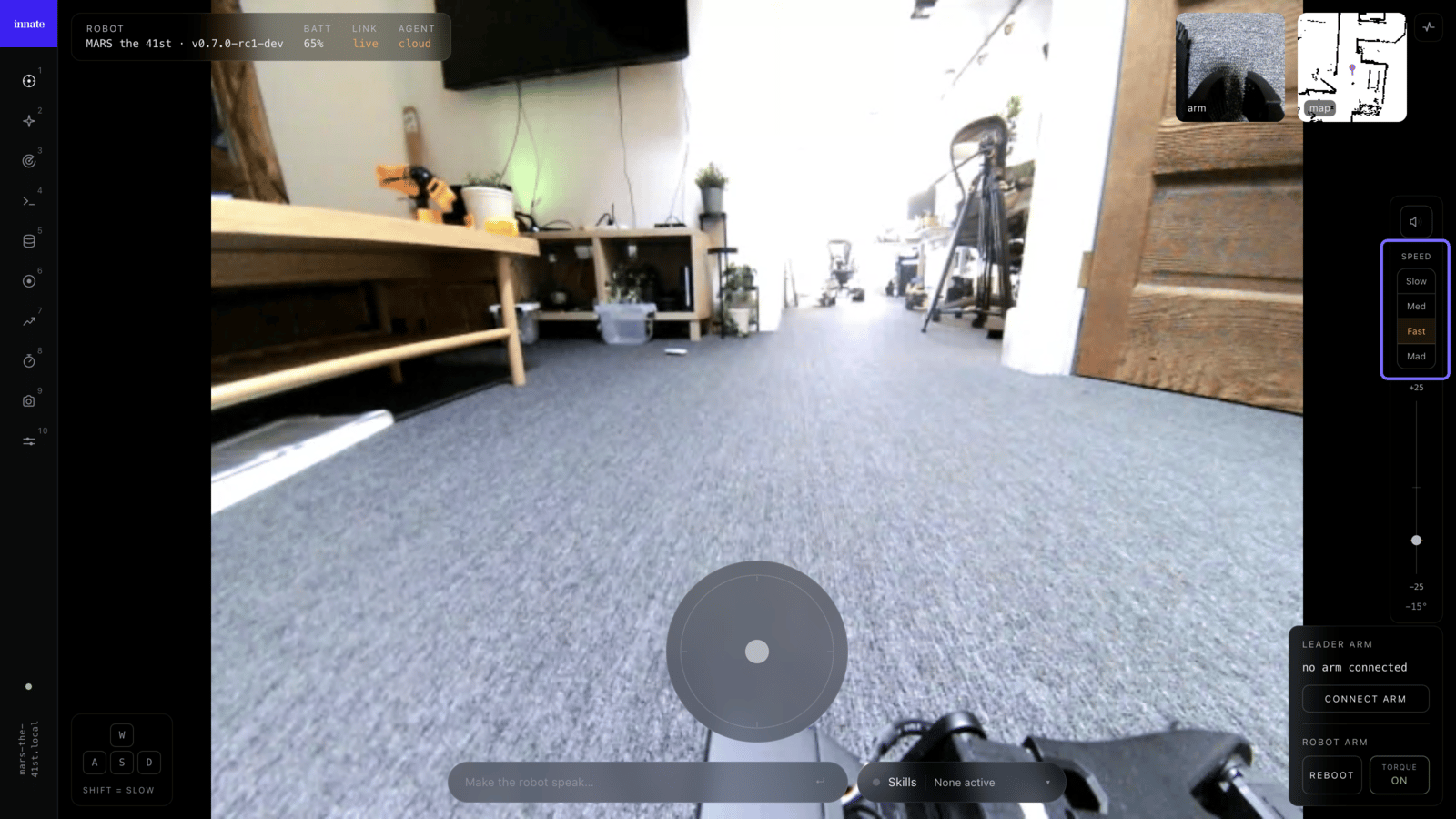
Joystick driving is ramped rather than applied instantly: the app sends a target velocity and the robot accelerates toward it on its own 50 Hz loop. Releasing the stick — or losing Wi-Fi — decelerates under the same limits instead of cutting out.
What the leader arm is (and isn’t)
The leader arm is a teleoperation controller, not a second robot. You pose it joint-by-joint and MARS’s own arm mirrors the motion, puppet-style — so a few things that look like missing pieces are by design:- It has no camera. All perception comes from MARS’s onboard cameras. The leader arm only reports its joint angles.
- The tip is a spring-loaded trigger, not a gripper. Squeezing the trigger drives MARS’s grasper open/closed; it doesn’t grasp anything itself.
- Its segment proportions differ from the robot’s arm, and that’s fine. Teleoperation maps joint angles, not absolute reach, and training only records the robot’s joint state plus its camera feeds — never the leader arm’s geometry. So the difference in segment lengths has no effect on the skills you train.
Connecting to a Robot (Wi-Fi + BLE)
The app discovers the robot over Bluetooth, puts it on your Wi-Fi (a phone hotspot works too), then connects over the network. The full flow, with screenshots, lives here:Connecting to a robot
Bluetooth pairing, Wi-Fi setup, and what to do when the robot changes network.
- The robot publishes a
.localhostname (for examplemars-robot.local), so you can still reach it if its IP address changes. - Once connected, you can check the robot’s current IP in Configuration -> WiFi.
Connecting via SSH
SSH gives you a terminal directly on the robot (usernamejetson1, password goodbot) over Wi-Fi, Ethernet, or USB-C. Full instructions for all three methods, including hostname rules and static-IP setup per OS:
Connecting via SSH
The complete SSH reference — Wi-Fi, Ethernet, and USB-C recovery.